12 Nov

Modeling Structure in Revit®: 3. Practical guidelines for modeling vertical structural elements

Practical guidelines for modeling structural elements in Revit® include:

Guidelines for vertical structural elements:

  1. Modeling structural bearing walls
  2. Modeling structural non-bearing walls
  3. Modeling other (non-structural) walls (in case they are needed for some reason).
  4. Modeling structural columns

guidelines for horizontal structural elements: Read More

12 Nov

Modeling Structure in Revit®: 2. Set Levels and Grids
“Set levels and grids? Just throw a few of them in the model and let’s do some real modellin’!”

Level as the most important element

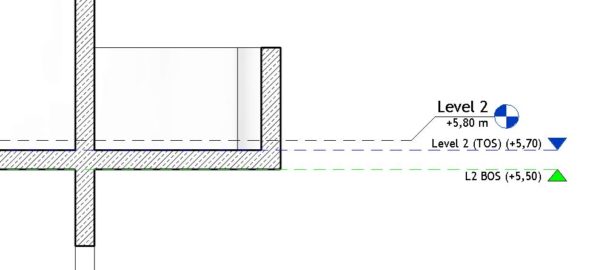
Levels are the most important elements of a Revit model. Grids are important, but not so much as levels (you know, if you delete a grid, nothing will get deleted with it like when you delete a level).

Your whole future (re)modeling work  depends on how you plan and set your levels in the beginning. Levels and grids are “the structure” of your Revit model. You don’t need to be a structural engineer to know the importance of a good structure. Here are some important tips about how to properly Read More

12 Jan

Cuttable vs. Non-Cuttable Revit® Categories

If a family is cuttable then the family displays as cut when the cut plane of a view intersects that family in all types of views.

In Family Editor, click visibility-settings to open Element Visibility Settings dialog. There is an option called When cut in Plan/RCP.  (RCP is short for Reflected Ceiling Plan)
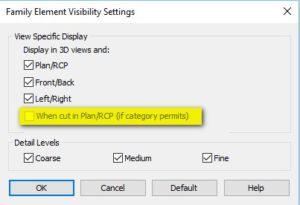
visibility-settings-dialog

This option determines if family geometry is shown when the cut plane intersects that family. Family can be cuttable only if it’s Category is cuttable. How can we know which Revit categories are cuttable and which are not? Read More

11 Nov

How to display beam projection in Revit® plan views

Revit Beams are also known as “Structural Framing”.

Typical arhictectural (floor) plan view shows particular level with it’s cut plane set approximately 120cm from the level. Also, beams from the level above are shown in floor plans. And, here comes our first problem with Revit: what’s the easiest way to show our beams without too much manual interaction?

There are several solutions for showing beams “from above” in Revit floor plan views, each of them having their pros and cons: Read More

10 Nov

Display fire rating symbol with doors in Revit®

In your Revit project documentation, sometimes you want to display parameters or values that are not available in Tag’s Label dialog.

Let’s take an example:

Door fire rating is a system parameter that you can use (and tag) with a door family. But, you do not want to display parameter value but rather a symbol representing value (or a range). There is no way that Revit will allow this to happen using regular Tags, that is, Tag familiy cannot “read” a value and then “decide” what graphic symbol to use. You must do this manually by using “correct” tag or tag type.

There is, however, an alternative solution. It is not coolest solution because it is off Revit’s logic (where model elements and annotations are separated) but it works.

What you need to do is: Read More

30 Aug

Cannot select multiple elements in a Plan View

Common “problem” I see my coworkers stumble upon is the problem with selection of multiple elements in a Floor Plan (and other Plan Views in Revit®).

What’s the problem: “Look, I have no problem with selection of elements one-by-one, but when I try to select few of them at the same time, nothing happens! What’s going on?”

So, point is you CAN at least select something. That eliminates element selection controls as potential problem (you know, those little switches in the lower right corner of the Revit®).

Solution: Check if elements you are trying to select are not in the Read More

29 Aug

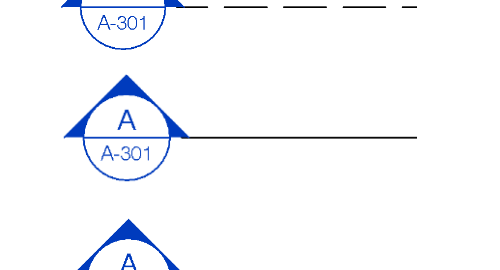
How to adjust Revit® Section Line Style

Changing the Section line in the Visibility/Graphic Overrides under Section category on the Annotation Categories tab is not possible.

One way to adjust Revit Section Line style, is to go to the Object Styles (Manage tab on the Ribbon > Object Styles).

Then, on the Annotation Objects tab, there is a Category called Section Line. In this row you can change the line color, line pattern and the line width of the Revit Section line.

In the Object Styles table, there is also one sub-category Read More

28 Apr

Revit® Line Styles

In Revit we have two types of lines: model lines and annotation lines. In short, model lines can be modelled in any kind of view (plan, section, 3D etc.), and they will be visible in 3D (and in other views), hence the name “Model lines”. Annotation lines depend on a view they are drawn in, and they are visible only in that particular view (of course, they can be copied to other views as well), hence the name “Annotation lines”. Both, model and annotiation lines are members of the Revit category called Lines.

Line appearance is defined in the Line Styles tool. Each line style is a unique subcategory of the Revit Lines category. Managing lines in Revit is quite easy, using Object Styles tool or Visibility/Graphic Overrides tool we can turn lines on/off and change their appearance.

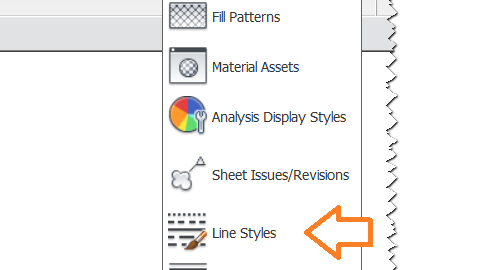
Line Styles tool can be run from the ribbon, choose Manage tab, then Additional Settings, and finally, option revit-line-styles-icon Line Styles: Read More